Azure Key Vault + MySQL + phpMyAdmin
This example demonstrates using Docker Secret Operator (DSO) to inject MySQL credentials from Azure Key Vault into a MySQL + phpMyAdmin stack — with zero secrets in your compose file or on disk.
What This Example Does
| Component | Role |
|---|---|
| Azure Key Vault | Stores MYSQL-ROOT-PASSWORD, MYSQL-USER, MYSQL-PASSWORD as individual secrets |
| dso-agent | Authenticates to Azure, fetches secrets, and caches them in memory |
| dso compose | Injects the secret values into docker compose at container startup |
| mysql_db | MySQL container receives credentials via environment variables |
| phpmyadmin | Connects to MySQL without any credentials in the compose file |
Prerequisites
- DSO installed (
curl -fsSL .../install.sh | sudo bash) - An Azure Key Vault with the three secrets created (see Step 1)
- One of the following for authentication:
- Azure VM with a Managed Identity assigned (recommended — no credentials on disk)
- Service Principal with
Key Vault Secrets Userrole
Azure vs AWS — Key Difference in DSO Config
Important: Azure Key Vault stores secrets as plain strings, not JSON objects like AWS Secrets Manager.
DSO wraps each Azure string value as
{"value": "<secret-string>"}internally. This means the mapping key is alwaysvalue, regardless of the secret name.
| Provider | Secret format | DSO mapping key |
|---|---|---|
| AWS Secrets Manager | JSON object {"password": "s3cr3t"} |
The JSON field name (e.g. password) |
| Azure Key Vault | Plain string "s3cr3t" |
Always value |
Step 1 — Create Secrets in Azure Key Vault
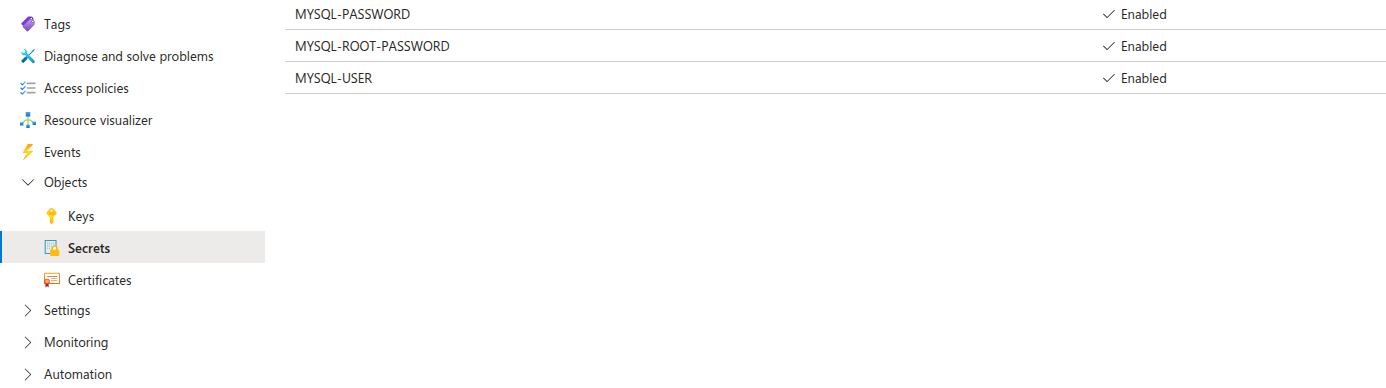
In the Azure Portal → Key Vault → Secrets, create three secrets:
| Secret Name | Example Value | Description |
|---|---|---|
MYSQL-ROOT-PASSWORD |
root |
MySQL root user password |
MYSQL-USER |
test |
Application MySQL username |
MYSQL-PASSWORD |
password |
Application MySQL user password |
Note: Azure Key Vault does not allow underscores (
_) in secret names. DSO automatically converts_to-when fetching, so you can use either naming style indso.yaml.
The secrets in your Key Vault should look like this — all showing Enabled status:
Step 2 — Set Up Authentication
Option A: Managed Identity (Recommended for Azure VMs)
- In the Azure Portal, go to your VM → Identity → System assigned → On → Save
- In Key Vault → Access policies → Add Access Policy:
- Secret permissions:
Get,List - Select principal: your VM’s name
- Secret permissions:
- Save. Done — no credentials needed on the VM.
Option B: Service Principal
# Set environment variables for the Azure provider
export AZURE_TENANT_ID="your-tenant-id"
export AZURE_CLIENT_ID="your-client-id"
export AZURE_CLIENT_SECRET="your-client-secret"

# Or use az login for interactive authentication
az login
Step 3 — Configure DSO
Copy dso.yaml to the system config location:
sudo mkdir -p /etc/dso
sudo cp dso.yaml /etc/dso/dso.yaml
sudo chmod 600 /etc/dso/dso.yaml
dso.yaml — connects to your Azure Key Vault and maps each secret:
provider: azure

config:
  vault_url: "https://dev-kv.vault.azure.net/"   # Your Key Vault URL

agent:
  cache: true
  refresh_interval: 5s

secrets:
  - name: MYSQL-ROOT-PASSWORD    # Exact name in Azure Key Vault
    inject: env
    mappings:
      value: MYSQL_ROOT_PASSWORD  # Azure strings always use "value" as the key

  - name: MYSQL-USER
    inject: env
    mappings:
      value: MYSQL_USER

  - name: MYSQL-PASSWORD
    inject: env
    mappings:
      value: MYSQL_PASSWORD
Finding your vault URL: Azure Portal → Key Vault → Overview → copy the Vault URI (e.g.
https://dev-kv.vault.azure.net/)
Step 4 — Start the DSO Agent
sudo systemctl restart dso-agent
sudo systemctl status dso-agent

# Verify each secret is reachable:
dso fetch MYSQL-ROOT-PASSWORD
dso fetch MYSQL-USER
dso fetch MYSQL-PASSWORD
Expected output for each:
Secret: MYSQL-ROOT-PASSWORD
  value: root
Step 5 — Review the Docker Compose File
docker-compose.yaml — no secrets here:
services:
  mysql_db:
    container_name: mysql_database_cnt
    image: mysql:latest
    ports:
      - "3306:3306"
    environment:
      - MYSQL_ROOT_PASSWORD    # ← Injected by DSO from Azure Key Vault
      - MYSQL_USER             # ← Injected by DSO from Azure Key Vault
      - MYSQL_PASSWORD         # ← Injected by DSO from Azure Key Vault
    restart: always
    volumes:
      - $PWD/mysql-data:/var/lib/mysql

  phpmyadmin:
    container_name: phpmyadmin_cnt
    image: phpmyadmin/phpmyadmin:latest
    restart: always
    ports:
      - "82:80"
    environment:
      PMA_HOST: mysql_db
      PMA_PORT: 3306
Step 6 — Deploy
dso compose up -d
DSO will:
- Load
/etc/dso/dso.yaml - Connect to
dso-agentover the Unix socket - Fetch
MYSQL-ROOT-PASSWORD,MYSQL-USER,MYSQL-PASSWORDfrom Azure Key Vault - Inject them into the environment as
MYSQL_ROOT_PASSWORD,MYSQL_USER,MYSQL_PASSWORD - Run
docker compose up -dwith the enriched environment
Step 7 — Verify the Secrets Were Injected
docker exec -it mysql_database_cnt bash
env | grep MYSQL_
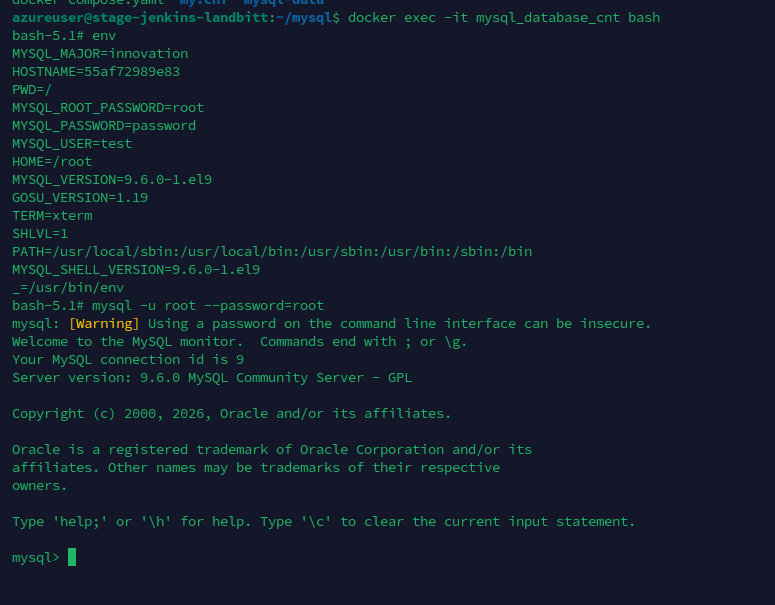
Expected output — credentials injected from Azure Key Vault:
MYSQL_ROOT_PASSWORD=root
MYSQL_PASSWORD=password
MYSQL_USER=test
You can also verify by logging in to MySQL directly:
mysql -u root --password=root
Step 8 — Access phpMyAdmin
Open your browser at http://<YOUR-VM-IP>:82
Login with:
- Server:
mysql_db - Username:
test(fromMYSQL-USER) - Password:
password(fromMYSQL-PASSWORD)
Troubleshooting
Authentication failed / 401 Unauthorized
# Check your Azure login
az account show

# Verify the Managed Identity can access the vault
az keyvault secret show \
  --vault-name dev-kv \
  --name MYSQL-ROOT-PASSWORD
Secret name not found
Azure secret names are case-sensitive and hyphen-only (no underscores). Verify the exact name:
az keyvault secret list --vault-name dev-kv --query "[].name" -o table
Ensure the name in dso.yaml matches exactly.
dso fetch shows empty value
Azure secrets must be in Enabled status. Check in the Azure Portal → Key Vault → Secrets → confirm each secret shows ✓ Enabled.
File Structure
examples/azure-compose/
├── docker-compose.yaml     # MySQL + phpMyAdmin (no hardcoded secrets)
├── dso.yaml                # DSO config pointing to Azure Key Vault
├── screenshots/
│   ├── azure-keyvault-secrets.png      # Azure Portal showing the 3 secrets
│   └── container-env-verification.png # Container env + MySQL login proof
└── README.md               # This guide
Cleanup
dso compose down
# or to also remove volumes:
docker compose down -v