AWS Secrets Manager + MySQL + phpMyAdmin
This example demonstrates using Docker Secret Operator (DSO) to inject MySQL credentials from AWS Secrets Manager into a MySQL + phpMyAdmin stack running on an EC2 instance — with zero secrets in your compose file or shell.
What This Example Does
| Component | Role |
|---|---|
| AWS Secrets Manager | Stores MYSQL_ROOT_PASSWORD, MYSQL_USER, MYSQL_PASSWORD |
| dso-agent | Fetches the secret from AWS and caches it in memory |
| docker dso | Injects the secret values into docker compose at startup |
| mysql_db | MySQL container receives credentials via environment variables |
| phpmyadmin | phpMyAdmin connects to MySQL without needing credentials in the compose file |
Prerequisites
- DSO installed (
curl -fsSL .../install.sh | sudo bash) - EC2 instance with an IAM Role that has
secretsmanager:GetSecretValuepermission - A secret created in AWS Secrets Manager (see Step 1 below)
Step 1 — Create the Secret in AWS Secrets Manager
Go to AWS Console → Secrets Manager → Store a new secret.
Choose Other type of secret and add the following key/value pairs:
| Key | Example Value |
|---|---|
MYSQL_ROOT_PASSWORD |
root |
MYSQL_USER |
umair |
MYSQL_PASSWORD |
password |
Give the secret a name — in this example: local_secret.
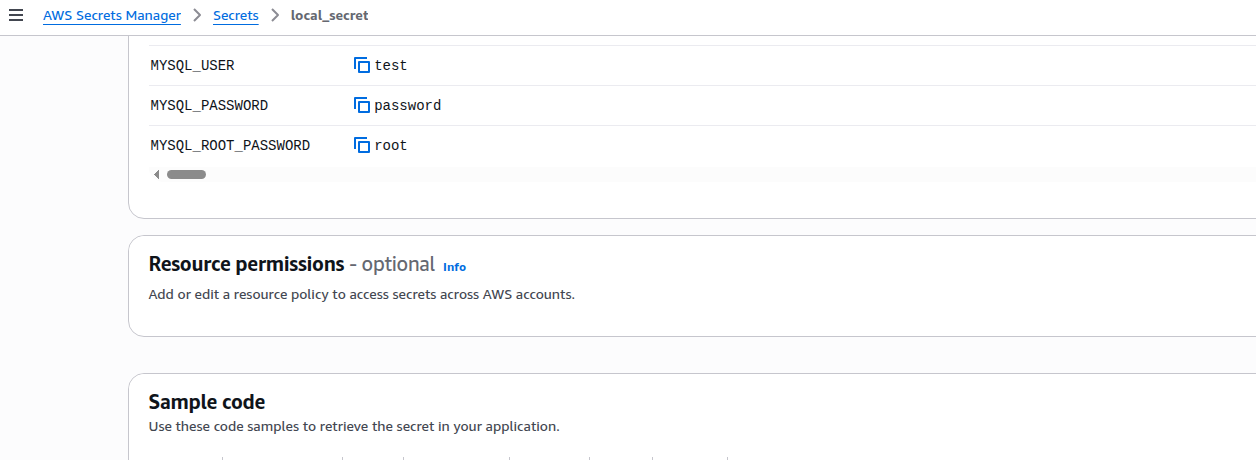
The secret name (
local_secret) is what you will reference indso.yaml. The keys (MYSQL_ROOT_PASSWORD, etc.) are the JSON field names that DSO maps to container environment variables.
Step 2 — Configure DSO
Copy the provided dso.yaml to /etc/dso/dso.yaml:
sudo mkdir -p /etc/dso
sudo cp dso.yaml /etc/dso/dso.yaml
sudo chmod 600 /etc/dso/dso.yaml
dso.yaml — connects to AWS and maps secret keys to ENV vars:
provider: aws

config:
  region: us-east-2    # Change to your AWS region

agent:
  cache: true
  # New v3 Watcher Configuration
  watch:
    mode: polling           # Options: polling, event (via webhook), hybrid
    polling_interval: 5m    # Frequency of cloud provider checks

  # New v3 Restart Strategy for all connected containers
  restart_strategy:
    type: rolling           # Seamlessly swap containers without downtime
    health_check_timeout: 45s
    grace_period: 20s

secrets:
  - name: <secrets-arn>
    inject: env
    rotation: true          # 🔥 Must be 'true' for the Watcher to track this secret
    reload_strategy:
      type: restart         # Automatically restart container when secret rotates
    mappings:
      MYSQL_ROOT_PASSWORD: MYSQL_ROOT_PASSWORD
      MYSQL_USER: MYSQL_USER
      MYSQL_PASSWORD: MYSQL_PASSWORD
IAM Authentication: On EC2, DSO automatically uses the Instance Profile (IAM Role) — no access keys needed. Ensure your EC2 role has
secretsmanager:GetSecretValuefor the secret ARN.
Step 3 — Start the DSO Agent
sudo systemctl start dso-agent
sudo systemctl status dso-agent

# Confirm it can reach your secret:
docker dso fetch local_secret
Expected output:
Secret: local_secret
  MYSQL_ROOT_PASSWORD: root
  MYSQL_USER: umair
  MYSQL_PASSWORD: password
Step 4 — Review the Docker Compose File
docker-compose.yaml — notice there are no secret values here:
version: "3.9"

services:
  mysql_db:
    container_name: mysql_database_cnt
    image: mysql:latest
    ports:
      - "3306:3306"
    environment:
      - MYSQL_ROOT_PASSWORD   # ← DSO injects this from AWS
      - MYSQL_USER            # ← DSO injects this from AWS
      - MYSQL_PASSWORD        # ← DSO injects this from AWS
    restart: always
    volumes:
      - ./mysql-data:/var/lib/mysql

  phpmyadmin:
    container_name: phpmyadmin_cnt
    image: phpmyadmin/phpmyadmin:latest
    restart: always
    ports:
      - "82:80"
    environment:
      PMA_HOST: mysql_db
      PMA_PORT: 3306
Step 5 — Deploy
# From the examples/aws-compose directory
docker dso up -d
Expected output:
DSO matched config: /etc/dso/dso.yaml
DSO securely injecting secrets for docker-compose.yaml...
[+] up 3/3
 ✔ Network mysql_default        Created                                                                                                                                                                                                  0.1s
 ✔ Container phpmyadmin_cnt     Started                                                                                                                                                                                                  0.8s
 ✔ Container mysql_database_cnt Started
DSO will:
- Load
/etc/dso/dso.yaml - Connect to
dso-agentover the Unix socket - Fetch
MYSQL_ROOT_PASSWORD,MYSQL_USER,MYSQL_PASSWORDfromlocal_secret - Inject them into the environment
- Run
docker compose up -dwith the enriched environment
Step 6 — Verify the Secrets Were Injected
Connect to the running MySQL container and inspect the environment:
docker exec -it mysql_database_cnt bash
env | grep MYSQL_
Expected output showing secrets injected from AWS:
MYSQL_ROOT_PASSWORD=root
MYSQL_PASSWORD=password
MYSQL_USER=umair
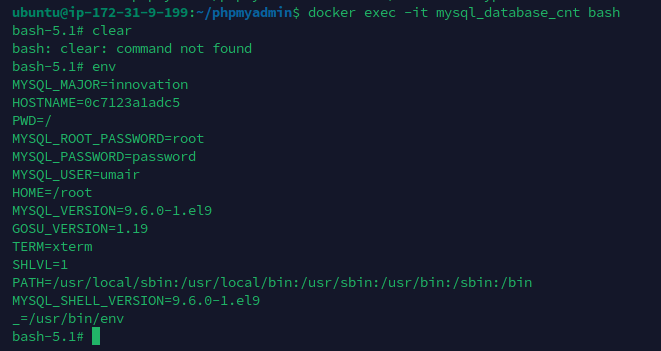
Notice that the container received the exact values from AWS Secrets Manager — without those values ever appearing in
docker-compose.yaml,.envfiles, or shell history.
Step 7 — Access phpMyAdmin
Open your browser at http://<EC2-PUBLIC-IP>:82
Login with:
- Server:
mysql_db - Username:
umair(fromMYSQL_USER) - Password:
password(fromMYSQL_PASSWORD)
How Authentication Works on EC2
DSO uses the AWS SDK default credential chain — no manual configuration needed on EC2:
1. Environment variables (AWS_ACCESS_KEY_ID / AWS_SECRET_ACCESS_KEY)
2. ~/.aws/credentials file
3. EC2 Instance Profile (IAM Role) ← recommended for EC2
4. ECS/EKS task role
The recommended setup is:
- Create an IAM Role with this policy:
{
  "Version": "2012-10-17",
  "Statement": [
    {
      "Effect": "Allow",
      "Action": "secretsmanager:GetSecretValue",
      "Resource": "arn:aws:secretsmanager:us-east-2:YOUR_ACCOUNT_ID:secret:local_secret-*"
    }
  ]
}
- Attach the IAM Role to your EC2 instance:
- EC2 Console → Instance → Actions → Security → Modify IAM role
- DSO will automatically use the role — no credentials on disk.
File Structure
examples/aws-compose/
├── docker-compose.yaml     # MySQL + phpMyAdmin stack (no hardcoded secrets)
├── dso.yaml                # DSO config pointing to AWS Secrets Manager
├── screenshots/
│   ├── aws-secret-values.png        # AWS Console showing secret keys
│   └── container-env-verification.png  # Container env showing injected values
└── README.md               # This guide
Cleanup
docker dso down
# or
docker compose down -v  # also removes volumes